WACrew
If you serve many clients at once, you spend your day looking at lists. The list of WhatsApp chats, the task list, the ticket list, the project list. Every list has the same flaw: it shows one thing at a time, in order, and hides the big picture. You have to scroll to find out that an important client has been stuck for hours.
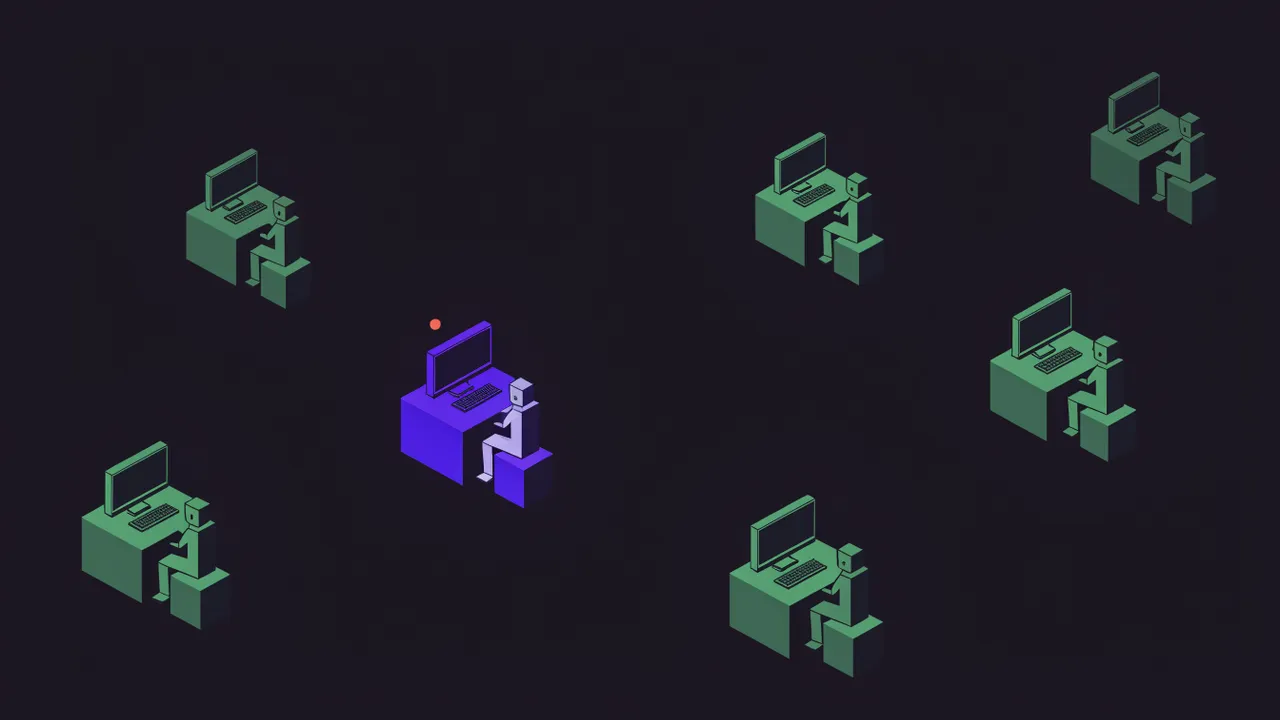
A 2D virtual office swaps the list for a map. Each client or project becomes a desk in a pixel art room, and the state of the conversation shows up on the desk itself. One glance tells you where the problem is. It looks like an old video game, but the idea behind it is serious and has a name: visual management.
What a 2D virtual office is
The term became popular with tools like Gather and WorkAdventure, which create 2D spaces where each teammate is a small avatar. You walk around the map, get close to someone and a conversation starts. Their focus is presence: knowing who is around and starting a chat without booking a meeting.
In client support, the same visual language does a different job. Instead of showing where people are, the map shows where the demand is. A client's desk turns red when a message arrives without an answer, a bubble above it shows something is pending, and you see ten clients at once without opening a single chat.
Why visual management works for support
Visual management is old. The kanban board on Toyota's factory floor, the status board of a call center and the priority lights on an office wall all follow the same principle: make the state of the work visible so nobody has to ask.
For WhatsApp support it solves three common problems.
Noisy chats hide quiet ones. WhatsApp sorts by the latest message. The group that sends twenty messages an hour always sits on top, and the client who asked one clear question and went silent sinks. On a map, that client's desk turns red just like the noisy group's.
You lose track of the whole. In a list of forty chats, simple questions like "how many clients are waiting right now?" are hard to answer. On a map you count red desks.
The team doesn't know who is handling what. When the map shows who replied last at each desk, it is clear where someone already stepped in and where nobody has gone yet.
How to build your own map view
You don't need a tool to start thinking this way. The exercise works with a spreadsheet.
- List your active clients, one per row or "desk". Finished projects leave the map, or they become noise.
- Pick one visible state: waiting for an answer or not. Too many colors confuse. Start with red and neutral.
- Group desks into rooms. One room per client type (retainer, fixed project, support) or per person in charge. Grouping is what makes the map readable.
- Look at the map at the start and end of the day. The ritual is what makes visual management work. A map nobody checks is decoration.
With a small client base, a spreadsheet with conditional formatting already gives you the map feeling. Past about fifteen active clients, updating it by hand stops being worth it.
The 2D office in WACrew
WACrew is an open-source project for serving clients on WhatsApp, and one of its panel screens is a 2D pixel art office. Each client project has a fixed desk. When a message arrives that nobody has answered yet, in the group or in a one-to-one chat linked to that client, the desk turns red right away, with a sound, without waiting for any alert deadline.
A few things the office shows beyond color:
- Who is who. Each client's contacts are linked to their desk, so you know whether the message came from the business owner or someone on their team.
- Org chart. The same information can be viewed as an org chart, for people who prefer team structure to a floor plan.
- Client card. Clicking a desk opens that client's card, with the people and the chats linked to them.
The office doesn't replace the queue. The WACrew queue sorts everyone by wait time, and that is where you work. The map answers a different question: "how does everything look right now?". One is your desk, the other is the window. The open-source WhatsApp CRM page shows the rest of the panel.
When the map helps and when it gets in the way
Visual management has limits, and it is worth being honest about them.
It helps when you serve many project clients with long relationships and need to see the whole picture several times a day. Agencies, software studios, consultancies and freelancers with a large client base are the typical case.
It gets in the way with high-volume, low-relationship support, like a store with hundreds of customers a day. The map turns into a sea of desks and a simple queue works better.
It doesn't fix the root problem if nobody has time to answer. The map shows the red. Answering is still someone's job. An AI agent that drafts replies in your voice can take part of that load, with you approving what goes out.
FAQ
Is a 2D virtual office the same as Gather? The visual language is similar. The goal is different. Tools like Gather show people's presence so you can talk. In client support, the map shows the state of each client.
Do I need a powerful computer? No. A pixel art office is light, runs in the browser and works on a phone.
Can I use only the map, without a queue? You can, but it is not ideal. The map shows who is waiting. The queue tells you in which order to answer. Together they work better.
If you want to see the office running, WACrew is free and you can run it on your own machine or server. The code is on GitHub.